
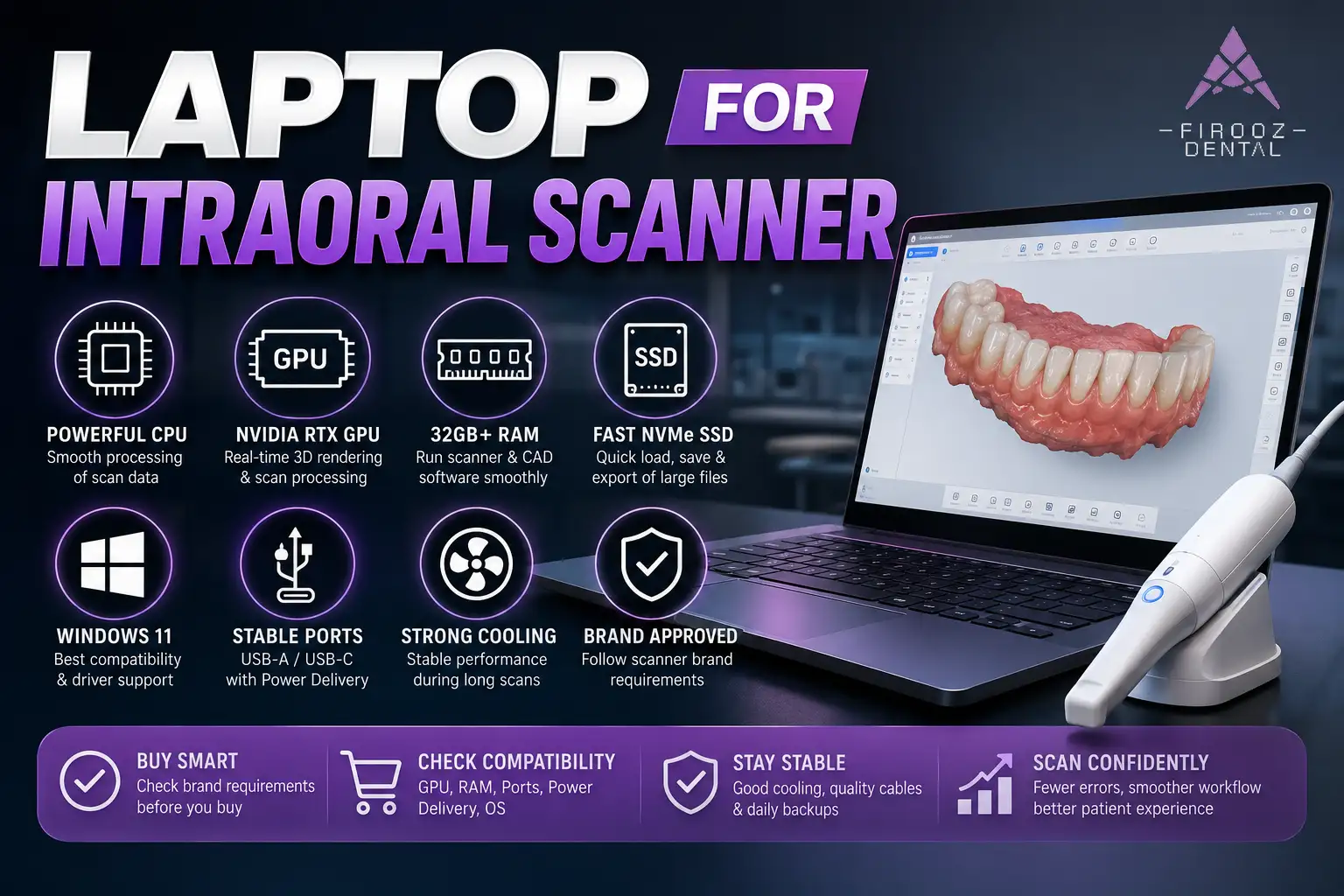
For most clinics, the safest laptop for intraoral scanner is not a basic office notebook. You need a Windows laptop with a performance-class CPU, a dedicated NVIDIA GPU, 32GB RAM, a fast NVMe SSD, and stable USB-A or USB-C ports. These specs matter because intraoral scanning software has to process 3D data in real time, manage scan alignment, handle large case files, and keep the scanner connected during the appointment. The best laptop for intraoral scanner use is the one that matches your scanner brand’s official requirements, not just the one with the highest price or a “gaming” label. In simple terms, your intraoral scanner laptop requirements should start with strong graphics, enough memory, fast storage, and the right ports. For a new purchase, a 32GB RAM laptop for intraoral scanner work is usually the safer choice than trying to save money with a weaker system.
An audio version of the article:
Why Intraoral Scanners Need More Than a Regular Office Laptop
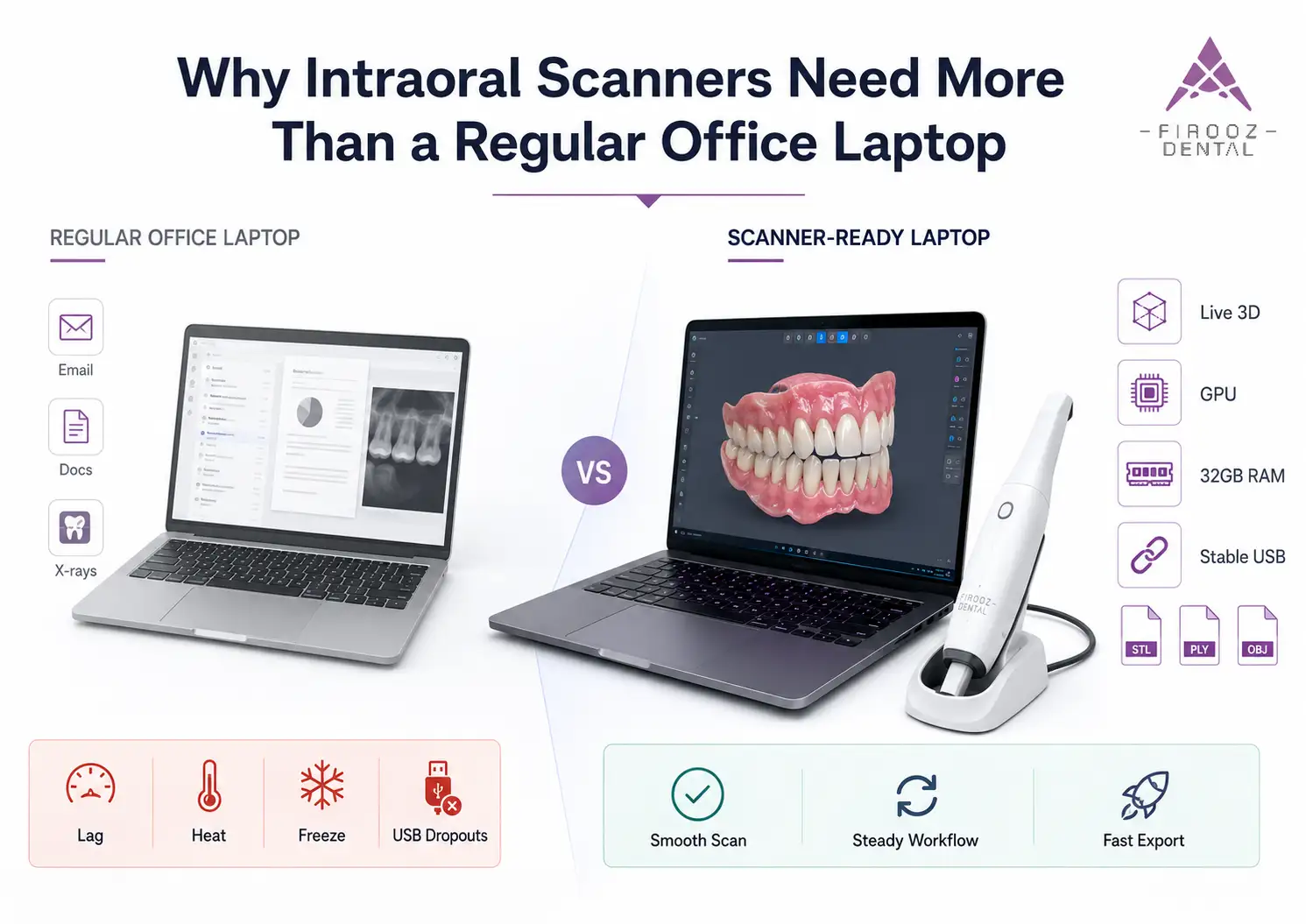
An intraoral scanner is not just a USB device that sends images to a computer. During a scan, the software has to read thousands of frames, build a 3D model, manage texture, match scan areas, clean extra tissue data, and prepare files such as STL, PLY, or OBJ for the lab or CAD software. That is why a basic office laptop can open emails and X-rays without trouble, but still struggle as a dental scanner laptop.
The main difference is workload. A normal office laptop is built for documents, browsing, video calls, and practice management software. A 3D dental scanning computer has to handle live 3D rendering, case files, graphics processing, and steady scanner connection at the same time. If the laptop is weak, the first signs are usually scan lag, delayed model building, loud fans, heat, software freezing, or USB dropouts.
In a real clinic, this becomes obvious during a full-arch scan. A low-spec laptop may start well, then slow down as the case grows. The dentist has to pause, rescan areas, or restart the software while the patient is still in the chair. That wastes chair time and makes digital impressions feel harder than they should. A proper digital impression laptop keeps the scan session steady from start to export.
This is why a dental CAD laptop should be chosen around scanner software needs, not just price or brand name. Medit lists NVIDIA RTX graphics with 6GB or 8GB VRAM in its current Windows requirements and says AMD Radeon is not supported for Medit Scan for Clinics. Shining 3D recommends 32GB or more RAM and an NVIDIA RTX 3060 or higher for IntraoralScan, while 3Shape lists 32GB RAM and 8GB NVIDIA video memory for its recommended system level.
Minimum vs Recommended vs Ideal Laptop Specs for Intraoral Scanners
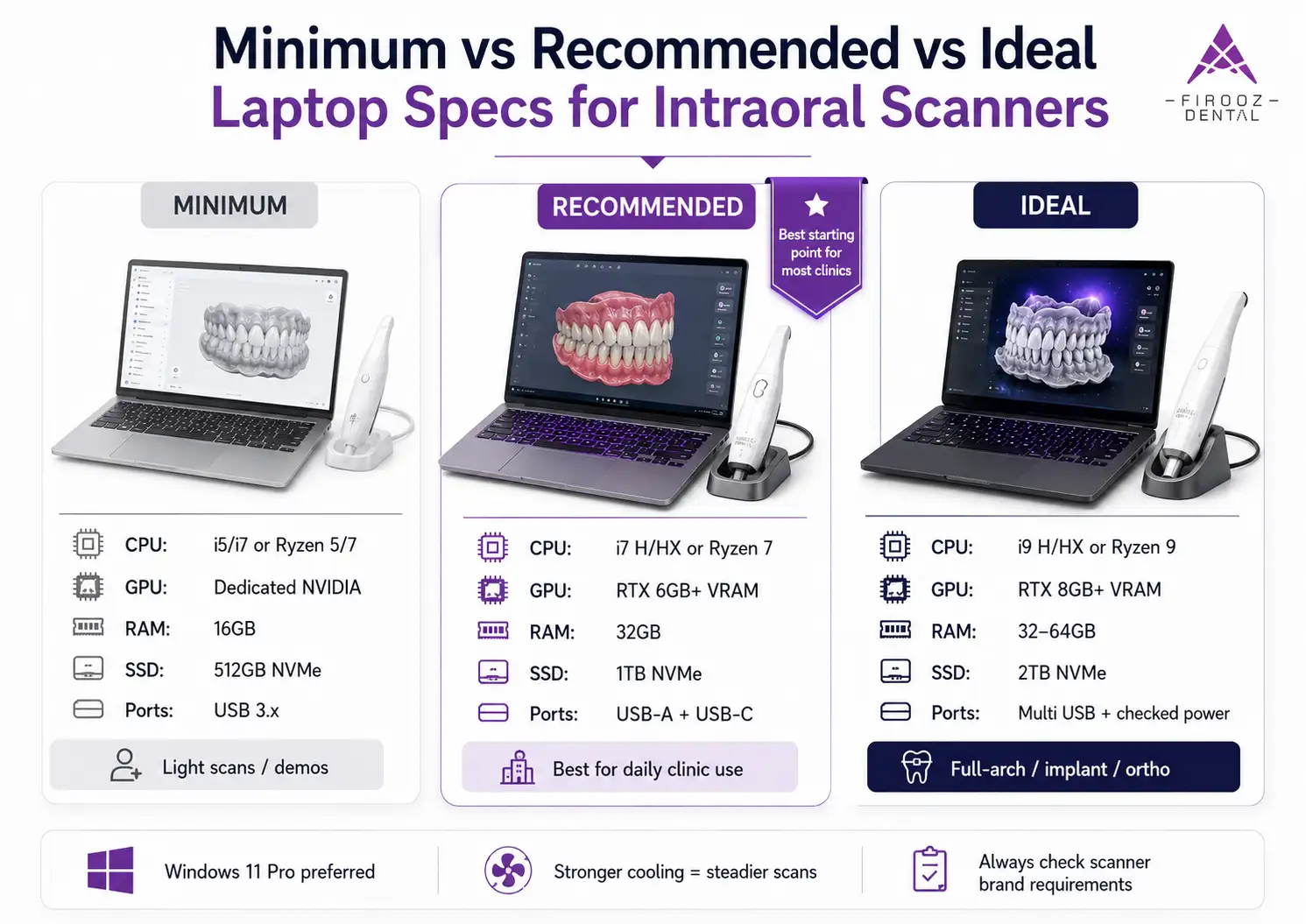
The right laptop configuration for intraoral scanner work depends on the scanner brand, case type, and how often the system is used. Minimum specs may run the software, but they are not always the best choice for daily clinical use. For a new purchase, recommended or ideal specs are usually safer.
| Spec | Minimum Specs | Recommended Specs | Ideal Specs for Heavy Clinical Workflows |
| CPU | Recent Intel Core i5/i7 or Ryzen 5/7 | Intel Core i7 H/HX or Ryzen 7 performance class | Intel Core i9 H/HX or Ryzen 9 performance class |
| GPU | Dedicated NVIDIA GPU, brand-approved | NVIDIA RTX with 6GB+ VRAM | NVIDIA RTX with 8GB+ VRAM, checked against brand rules |
| RAM | 16GB | 32GB | 32GB to 64GB |
| Storage | 512GB NVMe SSD | 1TB NVMe SSD | 2TB NVMe SSD or extra storage plan |
| OS | Windows 10/11 64-bit | Windows 11, often Pro for clinics | Windows 11 Pro, managed updates |
| Ports | USB 3.x matching scanner cable | USB-A 3.x plus USB-C/Thunderbolt | Multiple USB ports, checked power output |
| Display | Full HD | Full HD or better | 16-inch or larger, anti-glare preferred |
| Cooling | Basic | Strong cooling, plugged-in use | Workstation or high-end gaming cooling |
Minimum Specs
Minimum specs are only the entry point. They may be acceptable for light cases, demos, or occasional scanning, but they leave less room for larger files, software updates, or multi-tasking.
Recommended Specs
For most clinics, the safer recommended laptop specs for intraoral scanner use are a strong i7-class processor, NVIDIA RTX graphics, 32GB RAM, and a 1TB NVMe SSD. This level suits single crowns, routine digital impressions, and normal daily scanning.
Ideal Specs for Heavy Clinical Workflows
For full-arch cases, implant scan body workflows, orthodontic scans, and multi-room offices, buy above the minimum. More RAM, better cooling, stronger graphics, and extra storage reduce slowdowns during longer appointments.
CPU: Which Processor Is Best for Intraoral Scanning?
The processor for intraoral scanner work affects how fast cases load, how smoothly scan data is processed, how well the software handles background tasks, and how quickly files are exported. For most new systems, an Intel Core i7 H/HX laptop is a strong starting point. An Intel Core i9 or Ryzen 9 is better for heavy users.
Do not judge the CPU only by the label “i7” or “i9.” Generation, power class, core count, and heat control matter. A thin low-power i7 can perform worse under long scans than a thicker laptop with better cooling.
| CPU Class | Best For |
| Good | Light scanning, demos, backup laptop |
| Better | Daily clinic use, single crowns, routine cases |
| Best | Full-arch, implant, orthodontic, CAD/CAM workflows |
GPU and VRAM: The Most Misunderstood Part of an Intraoral Scanner Laptop
The GPU in an intraoral scanner laptop is not there for gaming. It helps the software draw, rotate, clean, and process 3D scan data while the patient is still in the chair. When the graphics card is weak, the scan may feel delayed, the model may build slowly, and large cases can become harder to finish.
VRAM matters too. Think of VRAM as short-term graphics memory. If the software does not have enough VRAM, it has less room to handle 3D surfaces, color texture, scan matching, and large case files. For many clinics, an RTX laptop for dental scanner use is a safer choice than a thin office laptop with only shared graphics.
Dedicated GPU vs Integrated Graphics
Integrated graphics share memory with the main system. That may be fine for email, X-rays, browsing, and practice software, but intraoral scanning is a different workload. A dedicated GPU has its own graphics memory and is better suited for real-time 3D model handling.
A laptop with integrated graphics may still open some scanner software, but “opens” does not always mean “works well during a busy clinical day.” For chairside scanning, full-arch cases, orthodontic scans, and implant scan body workflows, a dedicated NVIDIA GPU is usually the safer direction.
Why NVIDIA RTX Is Commonly Recommended
Many scanner brands list NVIDIA graphics in their official requirements. Medit lists NVIDIA RTX graphics with 8GB VRAM options for Medit Scan for Clinics and states that AMD Radeon is not supported. Shining 3D lists NVIDIA RTX 3060 or higher for IntraoralScan software. DEXIS also recommends 6GB VRAM and current NVIDIA drivers when using Scanbody AI Assist.
GPU Compatibility Warnings by Brand
Do not buy based on “RTX” alone. Some GPUs look good on paper but may not be accepted by a scanner brand. Shining 3D specifically lists RTX 3050, 4050, and 5050 as “DO-NOT-USE” for IntraoralScan. Medit does not support AMD Radeon for Medit Scan for Clinics. That is why GPU requirements for intraoral scanner use must always be checked against the scanner brand, not only the laptop seller’s page.
| GPU Choice | Use With Caution |
| NVIDIA RTX 4060 / 4070 / RTX A3000 class | Often a strong choice, but still check the scanner brand |
| RTX 3050 / 4050 / 5050 | Avoid for Shining 3D IntraoralScan |
| AMD Radeon | Not supported for Medit Scan for Clinics |
| Integrated graphics | Only for very light or brand-approved use |
RAM: Is 16GB Enough or Should You Buy 32GB?
For light use, 16GB RAM may be enough for some scanner software. For a new purchase, 32GB is the better clinical choice. It gives the system more room for scanning software, patient files, CAD/CAM tools, browser tabs, imaging software, and background services.
Shining 3D recommends 32GB or more RAM, dual channel, above 4800MT/s for IntraoralScan. Planmeca Emerald S also lists 32GB RAM in its recommended PC requirements. For most buyers, a 32GB RAM laptop for intraoral scanner work is the safer baseline.
| RAM | Best For |
| 16GB | Light scanning, demo systems, backup use |
| 32GB | Daily clinic scanning, full-arch cases, normal CAD/CAM use |
| 64GB | Heavy multitasking, large files, lab-style workflows |
Storage: Why NVMe SSD Size and Speed Matter
An SSD is not only for installing software. It stores case files, scan data, exports, libraries, screenshots, updates, and local backups. A small SSD can fill up fast in a clinic.
For light use, 512GB can work. For an active dental office, 1TB NVMe SSD is a better starting point. If the clinic scans daily, stores many cases locally, or works with STL, PLY, and OBJ files, 2TB gives more breathing room. A good SSD for intraoral scanner use should be fast, not just large.
Ports and Connectivity: USB-A, USB-C, Thunderbolt and Power Delivery
Ports are often ignored until the scanner disconnects mid-appointment. Scanner stability depends on the port type, power output, cable quality, and whether the laptop can keep the device connected under load.
Why Ports Can Make or Break Scanner Stability
A laptop may have a fast CPU and GPU but still fail in clinic if its ports are weak or poorly matched. Before buying, check whether your scanner needs USB-A, USB-C, Thunderbolt, or a powered hub. Also check whether the port is on a side of the laptop that works well on a scanner cart.
USB-C Power Delivery for Aoralscan Elite
Shining 3D says AoralScan Elite needs a USB-C Power Delivery port with 5V/3A output, and recommends Thunderbolt or another port that can provide 15W charging power. iTero Element Flex requires at least one USB-A port or a USB-C port with a USB-C to USB-A adapter. This makes a USB-C laptop for intraoral scanner work more than a simple spec sheet item.
Windows Laptop or MacBook for Intraoral Scanner?
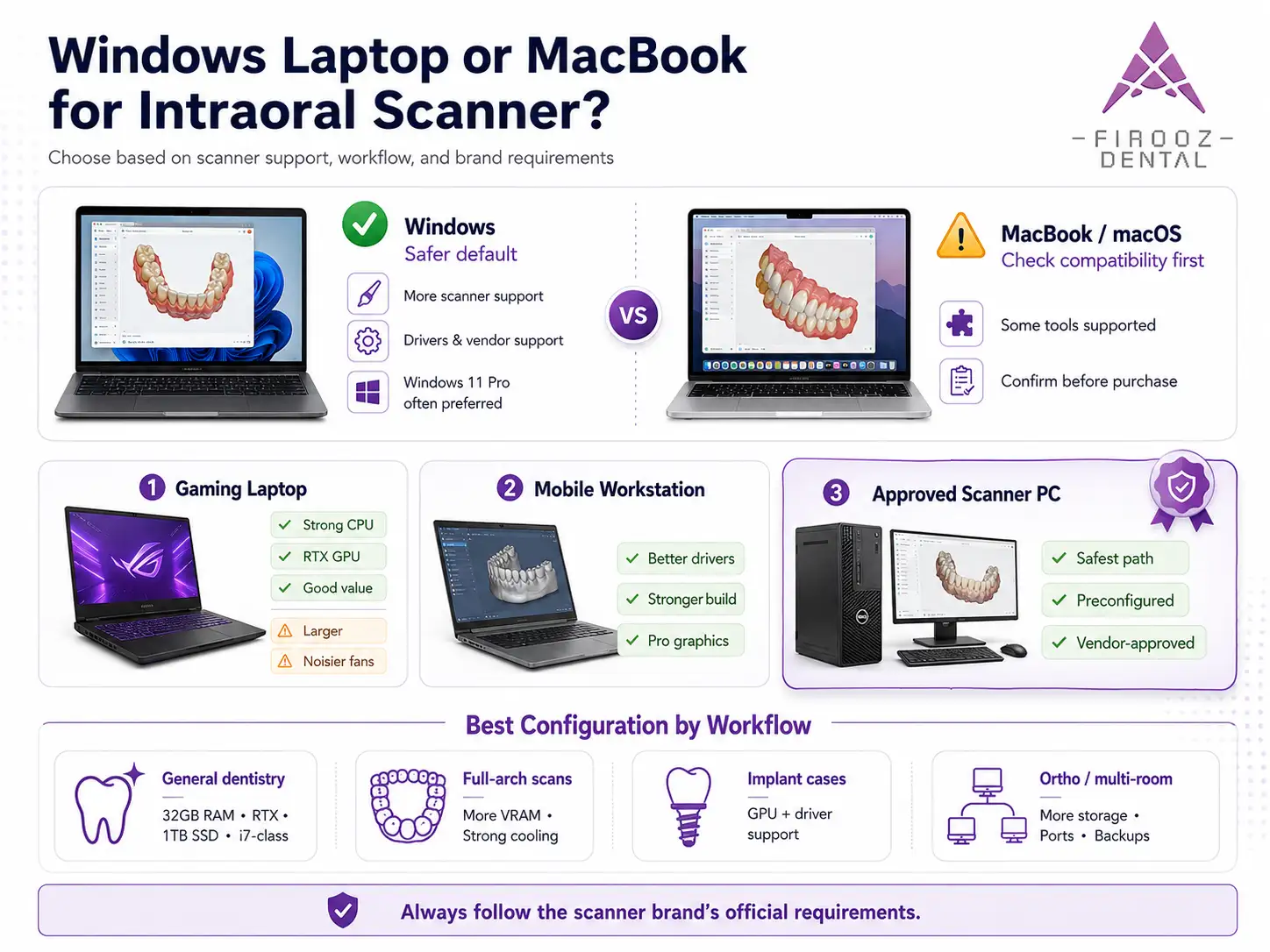
Windows is still the safer default for many scanner setups because more dental scanner systems, drivers, and vendor support paths are built around it. Some tools do support macOS; Medit, for example, lists Sonoma, Sequoia, and Tahoe for macOS in its requirements. But brand rules matter more than personal preference. For TRIOS 5, 3Shape provides an approved, preconfigured computer with Windows 11 Pro.
If you want a MacBook for intraoral scanner use, confirm support before purchase. Do not assume that a powerful MacBook will work with every scanner.
Gaming Laptop vs Mobile Workstation vs Approved Scanner PC
A gaming laptop for intraoral scanner use can be a good value because it often includes a strong CPU, NVIDIA RTX GPU, fast SSD, and good cooling. The downside is size, fan noise, battery life, and sometimes a less clinic-friendly design.
A mobile workstation for dental scanner use may cost more, but it often has workstation-class graphics, better driver support, and stronger build quality. An approved scanner PC is the safest path when the brand offers one. 3Shape says TRIOS orders include an approved, preconfigured computer with TRIOS software installed, while Planmeca Emerald S lists NVIDIA RTX A3000 or better in its recommended requirements.
Best Laptop Configuration by Clinical Workflow
For general dentistry and single crowns, 32GB RAM, RTX graphics, 1TB SSD, and a strong i7-class CPU is usually a good target. For full-arch scanning, choose stronger cooling and more VRAM. For implant scan body cases, GPU and driver support matter more because AI scanbody tools may need extra graphics memory. For orthodontic scans and multi-room offices, storage, ports, cart setup, and backup habits become more important.
Common Buying Mistakes Dentists Make
The most common mistake is buying the laptop before checking the scanner brand’s requirements. Other mistakes include choosing a laptop only because it says RTX, ignoring VRAM, buying 16GB RAM with no upgrade path, choosing a tiny SSD, missing USB-C Power Delivery, using weak cables, buying a thin laptop that overheats, or choosing Mac without written support confirmation.
How to Check Laptop Compatibility Before You Buy
Use this quick checklist: confirm the exact scanner model, read the official requirements, compare against recommended specs, check GPU and VRAM, confirm RAM and SSD, verify USB-A or USB-C needs, check Power Delivery, confirm Windows or macOS support, ask the reseller in writing, and keep a return option open.
Should You Buy the Laptop From the Scanner Vendor or Separately?
Buying from the scanner vendor can cost more, but support is easier. Buying separately can save money, but you carry the risk of choosing the wrong GPU, port, OS, or RAM setup. If the brand uses approved PCs, follow that path unless your vendor approves another option.
Practical Setup Tips for Dental Offices
Use a scanner cart with good ventilation. Keep the laptop plugged in during scans. Do not block air vents. Secure cables so the scanner port is not pulled during appointments. Back up cases daily. Keep drivers and scanner software current, but avoid updating during patient hours.
Final Buying Advice
The best laptop for intraoral scanner use is not always the fastest laptop. It is the one that matches your scanner software, GPU rules, port needs, workflow, and support path. Check the official requirements first, then buy above the minimum when the laptop will be used every day.
FAQs
- What is the best laptop for an intraoral scanner?
The best laptop for intraoral scanner use is usually a Windows laptop with a performance-class Intel Core i7/i9 or Ryzen 7/9 processor, a dedicated NVIDIA RTX GPU, 32GB RAM, a fast NVMe SSD, and the correct USB-A or USB-C ports for your scanner. The exact choice depends on your scanner brand and software requirements.
- Do I really need a gaming laptop for an intraoral scanner?
Not always, but many gaming laptops work well because they often include a strong CPU, NVIDIA RTX graphics, fast storage, and good cooling. However, not every gaming laptop is suitable. You still need to check GPU model, VRAM, RAM, ports, Windows version, and your scanner brand’s official requirements.
- Is 16GB RAM enough for intraoral scanning?
16GB RAM may work for light scanning or basic cases, but 32GB RAM is the safer choice for daily clinic use. If you scan full arches, handle implant cases, use CAD/CAM software, or keep several apps open at once, a 32GB RAM laptop for intraoral scanner work is a better investment.
- Which GPU is best for intraoral scanner software?
A dedicated NVIDIA RTX GPU is commonly recommended for many intraoral scanners. For most new purchases, look for an RTX GPU with at least 6GB to 8GB VRAM, depending on the scanner brand. Do not buy based only on the “RTX” name; some scanner brands do not support certain GPU models.
- Can I use a MacBook with an intraoral scanner?
Sometimes, but you must check the scanner software first. Many intraoral scanner systems are built mainly around Windows, drivers, and Windows-based support. Some brands may support macOS for certain models or workflows, but a powerful MacBook is not automatically compatible with every scanner.
- Why are USB ports so important for intraoral scanners?
USB ports affect scanner connection, power, and stability during appointments. Some scanners need USB-A 3.x, while others may need USB-C, Thunderbolt, or USB-C Power Delivery. A laptop can have strong CPU and GPU specs but still cause problems if the scanner disconnects because of the wrong port or weak cable.
- Should I buy the laptop from the scanner vendor or separately?
Buying from the scanner vendor usually costs more, but it can reduce compatibility and support problems. Buying separately may save money, but you must check the scanner’s official intraoral scanner laptop requirements before ordering. If your scanner brand offers an approved computer, that option is often the safest path.

2 Responses